
NOTE:
Note: Check you have DoPricer CPQ enabled = ON, AND also ON for that company. If a Product Item Discount or Product Category Discount exists on that company for a given line item, no default discount will apply.
INDEX
Enable DoPricer at Company Level
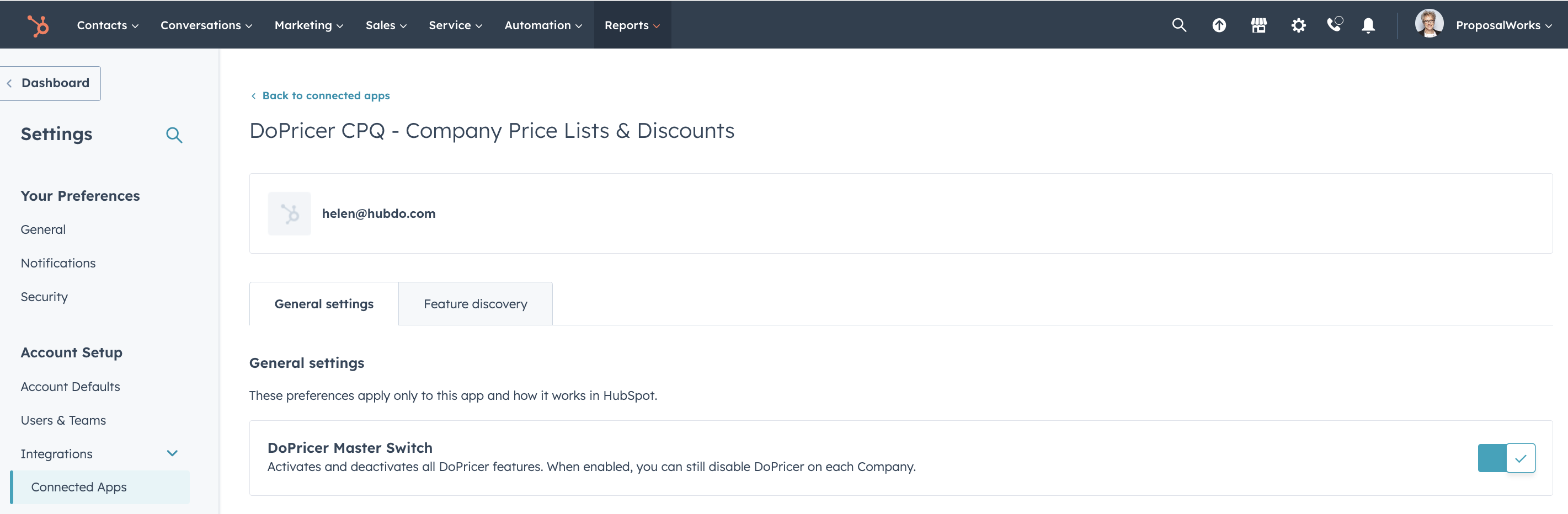
1. Turn on DoPricer on/off in DoPricer Settings
Check DoPricer on/off. Make sure that it is ON via Connected Apps in your HubSpot settings:
2. Enable DoPricer properties at the Company level:
-
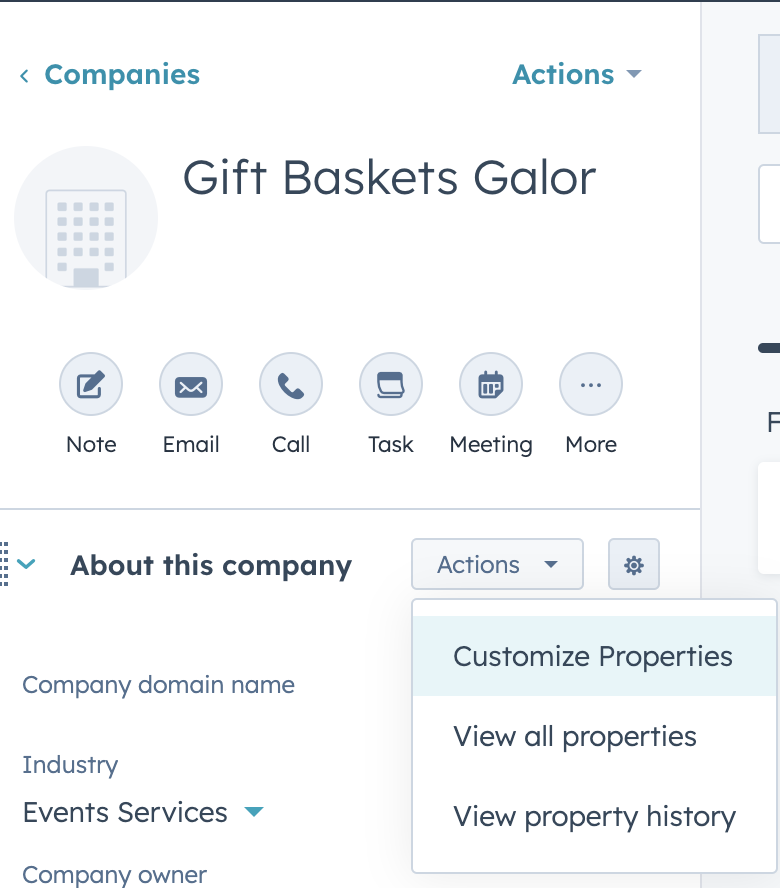
Go To Company record
-
Choose the Actions dropdown: choose "Customize Properties":
-
Add ALL DoPricer Properties
-
Add to view
Set the Default Discount
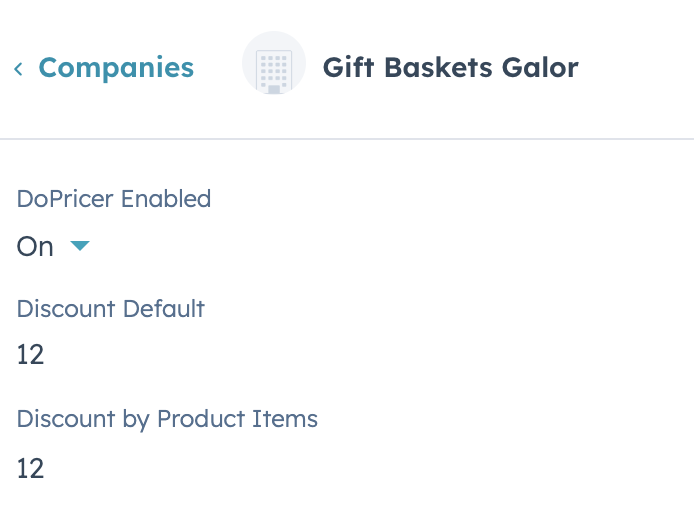
- Enter a number in the Discount Default property, which is found in the DoPricer group of properties, within each company listing.
- The number you enter represents a percentage discount applied to the price on each new line item on a deal.
- For example, in the image above we've used 12, to represent a 12 percent discount (12%)
- The only company discounts applied by DoPricer, are those stored on the Primary company associated with the deal.
- The number you enter represents a percentage discount applied to the price on each new line item on a deal.
-
There are several easy ways to set the Discount Default company property
- View properties on a single company view, set the Discount Default property, and save.
- From Company List View (see related Help Doc) with the Discount Default column visible, directly set an amount in the property cell for each company, and save.
- From Company List View:
- select one or more companies
- Click edit
- Choose Discount Default
- Enter a value, e.g. 10 (for a 10% discount)
-
Click Update
-
Use a HubSpot Company Workflow to set the Default Discount property, based on the trigger and rules used to add to the workflow.
- Once a value is set on a Discount Default company property, DoPricer will apply the discount to a line item under the following conditions:
- DoPricer on/off is On in DoPricer Settings
- The company property DoPricer Enabled = On
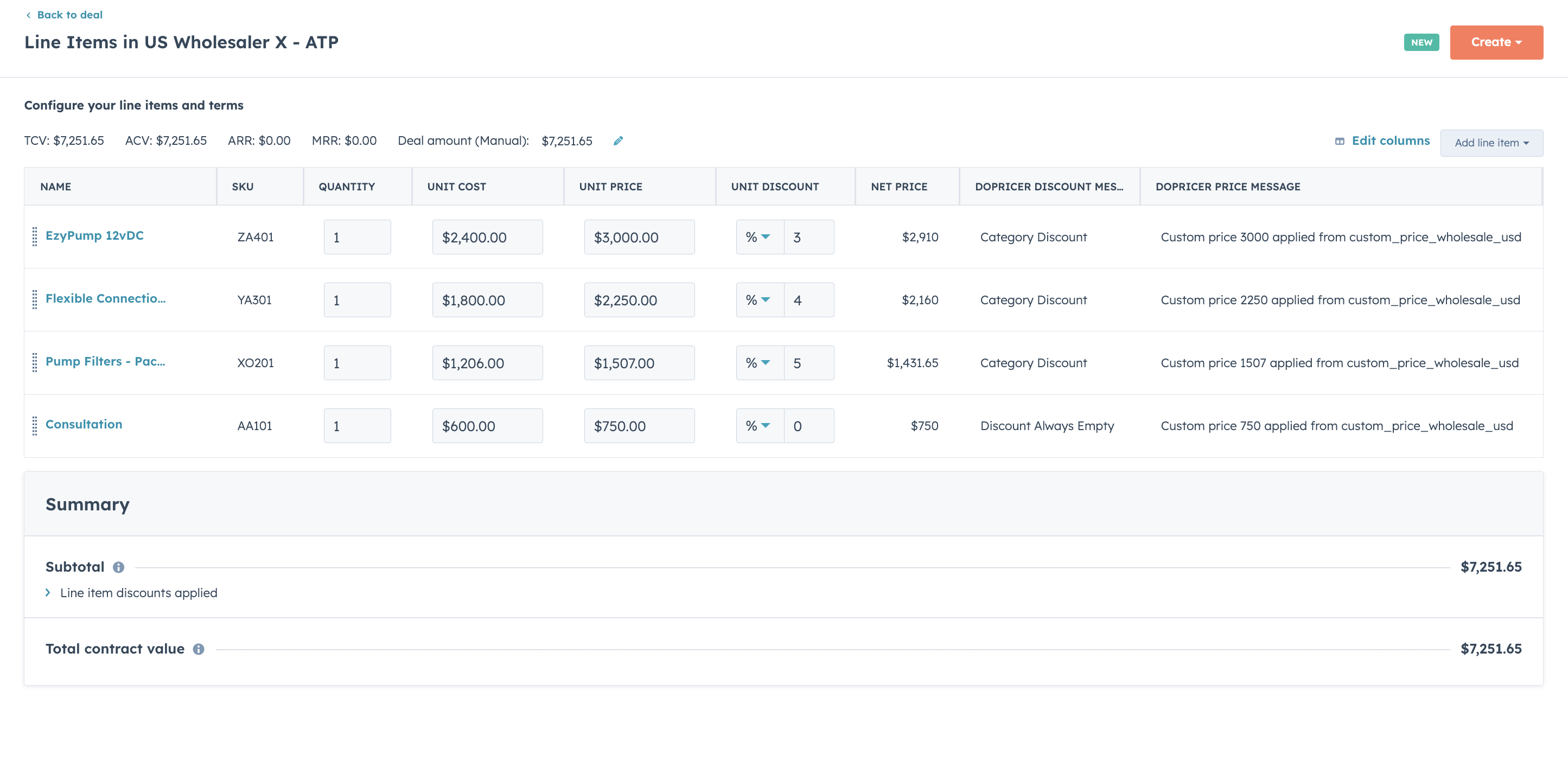
- The company has no Discount by Product Items entry for the line item's SKU, as that takes precedence over all other discounts.
- The company has no category discount (e.g. Pumps Disc%) for the product's category, as that takes precedence before Default Discount.
- The product's DoPricer Discount Always Empty property is not set to Yes.
Tip:
- When OFF, DoPricer CPQ takes no action in your HubSpot portal and does not process any deal line items.
- Use this to temporarily disable the App if required. No need to uninstall and reinstall
- Line items created while DoPricer is off aren't counted toward your usage.
- You can enable, or disable DoPricer on each Company.
You will not be able to switch DoPricer on if your subscription is canceled or suspended. Contact HubDo Support if unsure.