
What are custom price lists?
Custom price lists let you set different agreed prices — in different currencies — for different companies. When a sales rep adds a line item to a Deal or Quote, DoPricer reads the price list assigned to that Company and automatically applies the correct price.
Each custom price list is stored as a price property on your product records in the HubSpot product library, following a naming convention that ends in a three-letter ISO currency code. For example:
Label [Internal name]
- Wholesale USD [
custom_price_wholesale_usd] - OEM GBP [
custom_price_oem_gbp] - Reseller AUD [
custom_price_reseller_aud]
These sit alongside HubSpot's standard currency price properties in the Price property group of your product library.
Before you start
You need at least one additional currency enabled in your HubSpot portal. HubSpot only appends currency codes to price properties when more than one currency is active, and DoPricer relies on those currency-coded property names to function correctly.
If you only trade in one currency, you can enable a second currency and archive it afterwards — the properties it creates will remain.
How to create a new price list
*Screenshots below
-
- In HubSpot, open the DoPricer app and go to Settings.
- Scroll to the Price lists section and click Manage price lists.
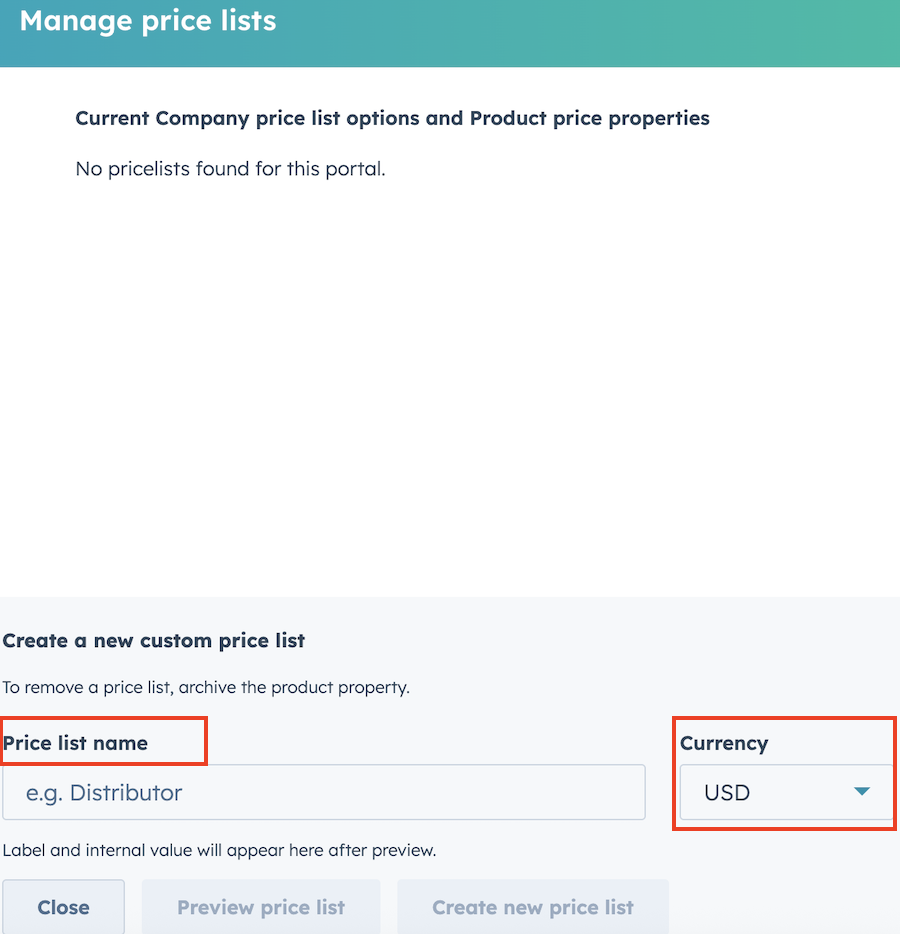
- The Manage price lists panel opens. Any existing price lists are shown here — HubSpot standard prices are marked with a HubSpot badge; custom price lists appear without one.
- In the Create a new custom price list section at the bottom of the panel, enter a name for your price list — for example, Wholesale or OEM — and select the currency it applies to.
- Click Preview price list. A preview appears showing the display label and the internal property name that will be created. > ⚠️ Important: The internal property name is generated from the name and currency you entered and cannot be changed after the price list is created. Review it carefully before continuing. If you need to adjust anything, make your changes and click Preview price list again.
- Once you are happy with the preview, click Create new price list.
DoPricer creates the "price property" in your HubSpot product library and adds it to the DoPricer Pricelist dropdown on Company records automatically.
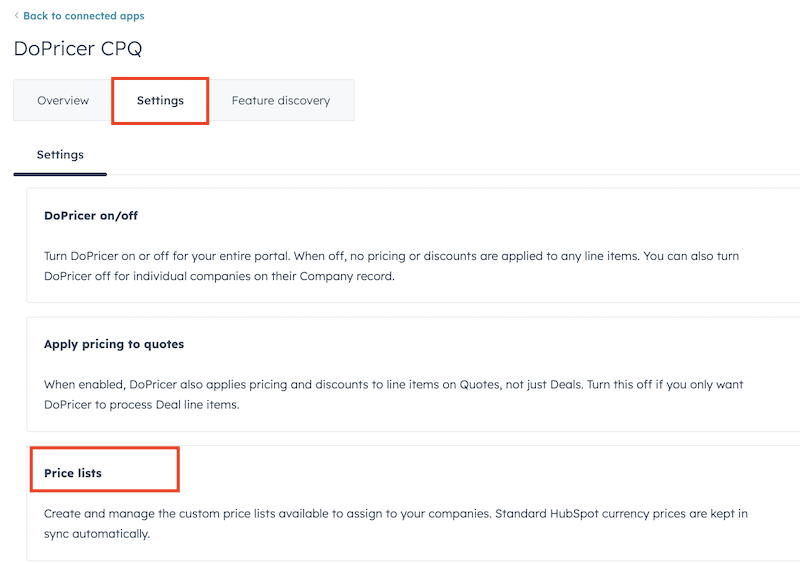
Go to Settings > Price Lists > click Manage price lists

Setup your Price list name and Currency here:
After creating the price list
The new price list property will be empty on all product records until you populate it. You also need to assign the price list to the relevant companies.
Step 1 — Add prices to your product records
Update your product records with the prices for the new price list. For a large product library, the fastest approach is to export your products, fill in the new price column, and re-import. For a small number of products, you can update records individually in Commerce → Products.
See How do I update custom prices on product records? for full instructions.
Step 2 — Assign the price list to the relevant companies
Open each Company record that should use this price list and set the DoPricer Pricelist field to the new option. This can be done manually on individual records, or in bulk using a HubSpot workflow or import.
Once both steps are complete, DoPricer will automatically apply the correct price the next time a line item is added to a Deal or Quote for an eligible company.
Removing a price list
There is no delete option within the DoPricer Settings screen. To remove a price list, archive the corresponding product property in HubSpot:
- In HubSpot, go to Settings → Properties.
- Set the object to Products.
- Find the price list property you want to remove and select Archive.
Archiving removes the property from active use without deleting any historical data.
⚠️ Before archiving, make sure no companies are still assigned to that price list. Open the DoPricer Pricelist property on the Company object and check for any active assignments before proceeding.