
A Company has one price list. When one Deal needs different prices — most often an order in another currency — choose a Deal price list on that Deal. It replaces the Company price list for every product added to the Deal and its Quotes.
When to use a Deal price list
The Deal price list is designed for one-off orders. For example, a UK customer has a GBP price list on their Company record and normally buys in GBP. Occasionally they place an order in USD. The GBP price list can't apply to a USD Deal, so you choose a USD price list for that one Deal instead.
If a customer regularly buys in several currencies, separate Company records — one per buying currency — are still the better fit. See How does DoPricer CPQ handle different currencies?
Before you start
-
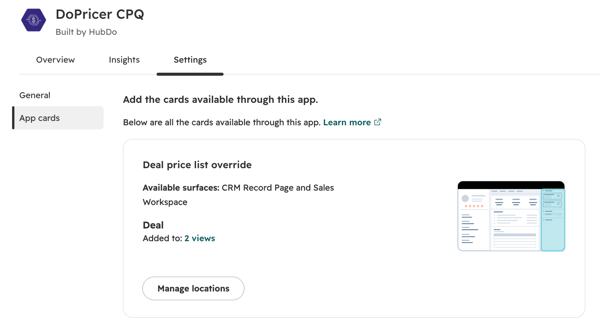
Add the Deal price list override card. The card doesn't appear on Deals automatically. An admin adds it either by customising the Deal record layout, or in DoPricer Settings > App cards > Manage locations. Once it's added, anyone who can edit a Deal can use it.
-
Installed DoPricer before October 2026? Reinstall DoPricer to get the current version of the feature.
- Create your price lists in DoPricer Settings > Price lists > Manage price lists. See How to Create New Price Lists in HubSpot.
How to choose a Deal price list
Step 1: Open the Deal before adding any products
The Deal price list can only be chosen while the Deal has no line items and no Quotes, so choose it first.
Step 2: Click (change) on the Deal price list override card
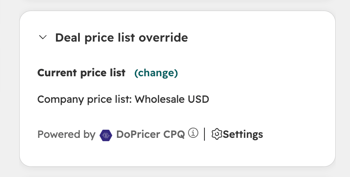
The card shows Current price list and, below it, the price list that applies now — for example Company price list: Wholesale USD, or Standard price if neither the Deal nor the Company has a price list. Click (change) to open the Deal price list panel.
Step 3: Choose the price list
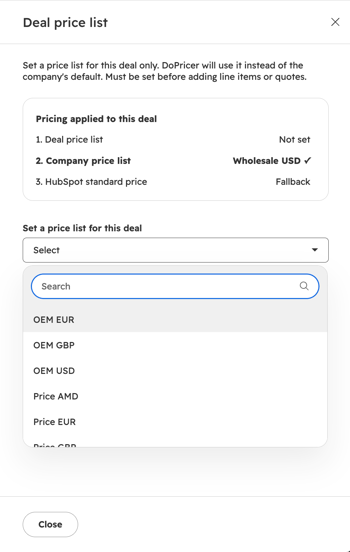
Under Set a price list for this deal, choose the price list you need — you can search the list. You can choose any price list, whatever the Deal's current currency. If the price list is in a different currency, the card switches the Deal currency to match.
The Pricing applied to this deal box at the top of the panel shows which price list DoPricer will use: the Deal price list first, then the Company price list, with the HubSpot standard price as the fallback.
Step 4: Add products as normal
Add line items to the Deal, click Save, wait a few seconds, then refresh your browser to see DoPricer's prices. Quotes created from this Deal use the Deal price list too.
Changing or clearing the Deal price list
You can change or clear the Deal price list only while the Deal has no line items and no Quotes. Otherwise the panel shows:
Price list locked — The price list can't be changed once line items or quotes have been added. To use a different price list, remove all line items and quotes first.
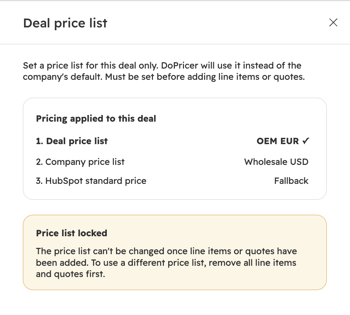
Remove all line items and Quotes from the Deal to unlock it.
To clear the Deal price list:
- On the Deal price list override card, click (change) next to Current price list.
- In the Deal price list panel, click Clear override.
- The Deal price list is cleared and the page refreshes back to the Deal.
Clearing the Deal price list switches the Deal currency back to the currency of the Company price list. If the Company has no price list, or the Deal has no Company, the Deal currency stays as it is.
What changes and what doesn't
- Prices come from the Deal price list instead of the Company price list.
- Discounts don't change. SKU, category and default discounts still come from the Company.
- SKU-based price exceptions on the Company (Price by Product Items) are not used on this Deal or its Quotes.
- A product with no price in the Deal price list gets the standard price for the Deal's currency — never the Company price.
- DoPricer must still be turned on for the Company, and the Deal must have a Company. Otherwise no DoPricer pricing applies.
Warnings on the card
The card shows a warning when no DoPricer pricing will apply:
- "Associate a company with this deal to apply DoPricer pricing, then click to refresh." — the Deal has no Company.
- "Enable DoPricer on this deal's company, then click to refresh." — DoPricer is turned off on the Company.
Fix the cause, then click click to refresh to reload the page.
How to see which Deals use a Deal price list
DoPricer's Price Message on a line item doesn't say whether the price came from the Deal or the Company price list. To see which Deals use a Deal price list, add the Deal property DoPricer deal price list as a column in your Deal views or reports. It shows the internal name of the chosen price list, for example custom_price_oem_eur.
This property is for display and reporting only. Editing it doesn't change any prices — always use the card.
Good to know
- Don't change the Deal currency by hand after choosing a Deal price list. If the Deal currency and the price list currency don't match, no custom prices apply — DoPricer never applies a price in one currency to a Deal in another. To use a different currency, change the Deal price list instead.
- There is no workflow action yet. The Deal price list can only be set with the card.
- Price lists in archived currencies are not offered on the card.
Related articles
- Can DoPricer handle custom and multiple price lists?
- How does DoPricer CPQ handle different currencies?
- How does DoPricer pricing work?
- How to Create New Price Lists in HubSpot
For more help please email support@hubdo.com