
INDEX
Create a quote from a deal
What DoQuotes fills in for you
Set your default template and expiration date
Carry over comments and terms
Before you start
You'll need:
- The DoQuotes app installed on your HubSpot portal
- A deal record with at least one associated contact and the line items you want on the quote
- A quote template set as your default — see Set your default template and expiration date below
Tip: Add your line items to the deal before creating the quote. DoQuotes copies the deal's line items onto the new quote at the moment it's created, so anything added to the deal afterwards won't appear automatically.
Create a quote from a deal
- Open the deal record you want to quote.
- Find the DoQuotes card in the right-hand sidebar.
- Click Create Quote.
- Wait a few seconds while the quote is built. The new quote then appears in the DoQuotes card.
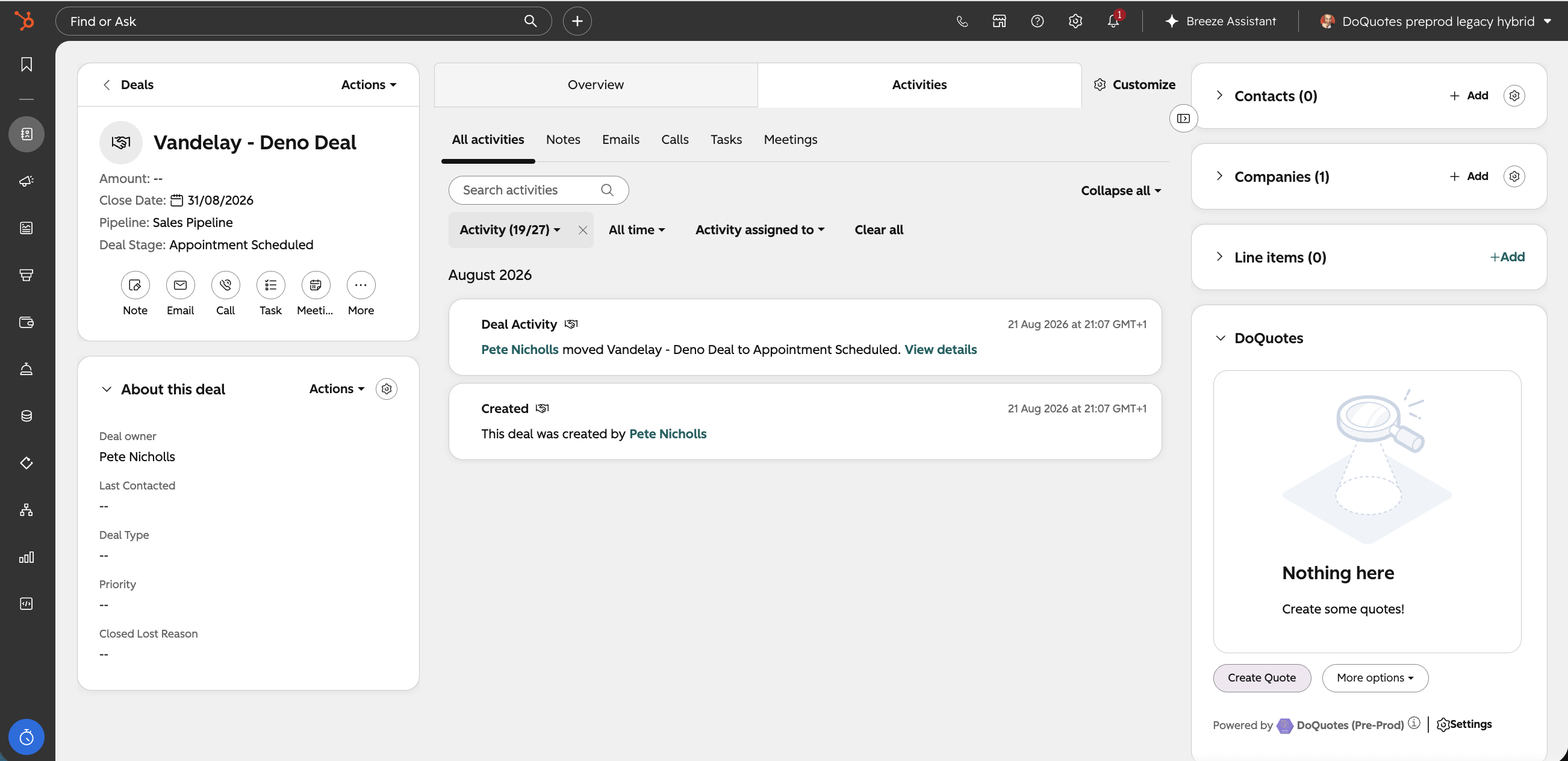
That's the whole flow — there's no form to fill in. DoQuotes uses your default template and pulls everything else from the deal.
Note: The quote is created as a draft. Nothing is sent to your buyer until you publish it — see Publish and recall a quote.
What DoQuotes fills in for you
A quote created this way arrives with:
- Your default quote template already applied
- Line items copied from the deal
- Buyer contacts taken from the deal's associated contacts
- Sender details from your quote sender company settings
- An expiration date, based on your default
- A DoQuotes reference number such as
Q00123, added to the front of the quote title
The reference number is a short, readable identifier your team and your customer can quote back to you, rather than HubSpot's long internal record ID. You control its format — see Quote reference numbers.
Tip: If a quote is created without the sender details you expect, check your sender company settings rather than the deal. Those are set once for the portal, not per quote. See DoQuotes settings.
Set your default template and expiration date
DoQuotes uses a default quote template and a default expiration date every time it creates a quote, so your reps don't have to choose each time. Both can be set at two levels:
- Portal level — the default for everyone, set by an admin
- User level — your own personal override, which takes precedence over the portal default
To set your own:
- Open the DoQuotes card on any deal.
- Click Settings.
- Under the user settings, choose your Quote template and your Expiration Date default.
- Save.
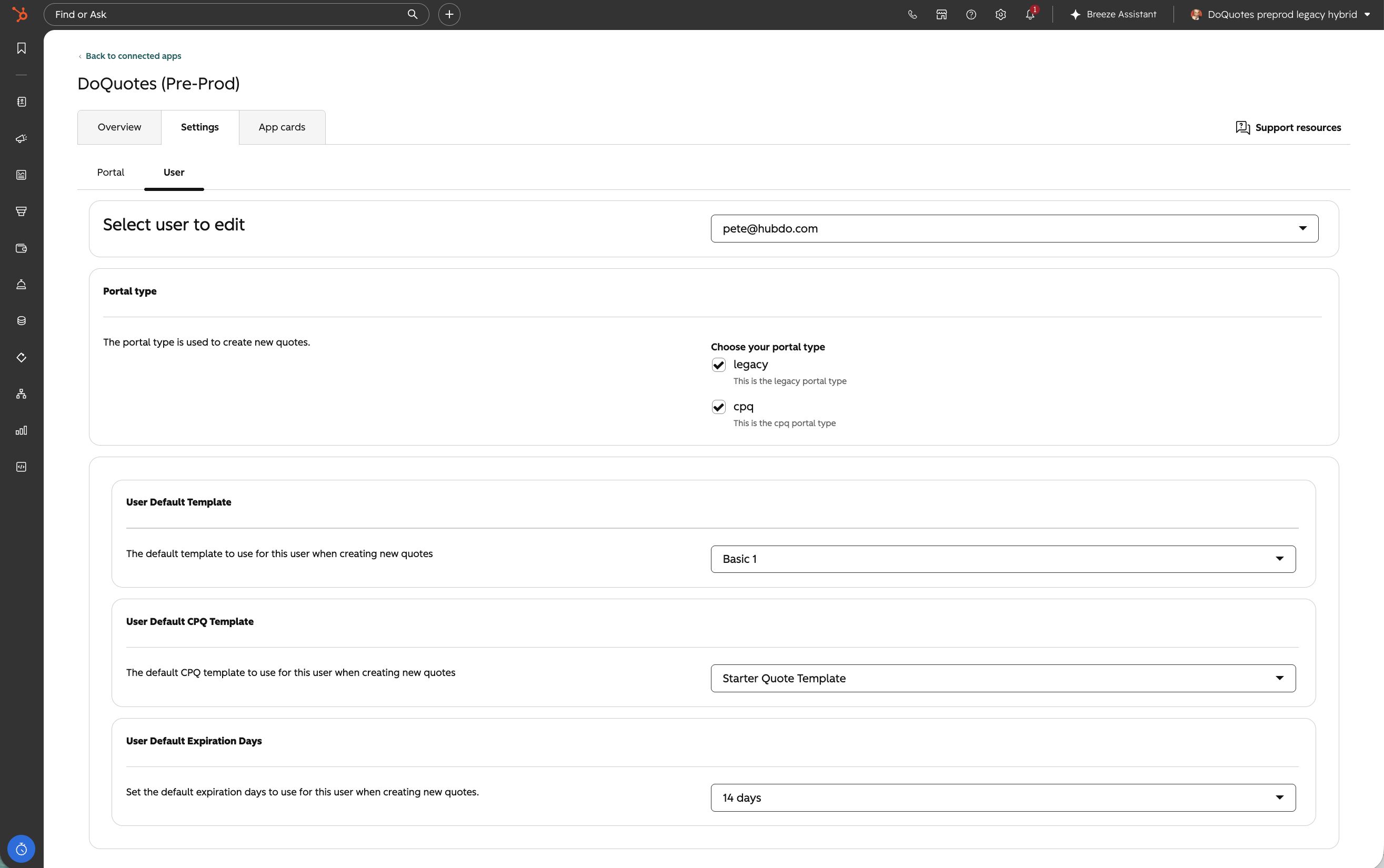
Note: Only quote templates that exist in your portal appear in this list. If the template you want isn't there, create it first in Settings → Objects → Quotes → Quote Templates.
Admins can set the portal-wide defaults in the same place. See DoQuotes settings for the full list of what's available at each level.
Carry over comments and terms
If your quotes usually repeat the same comments or terms and conditions, an admin can turn on Clone comments and terms from last published deal in the portal settings. With it on, each new quote reuses the comments and terms from the last published quote, so your team isn't retyping standard wording every time.
Leave it off if your terms genuinely differ from quote to quote.
Next steps
- Publish and recall a quote
- Clone a quote
- Create multiple quotes on one deal — for deals involving several resellers or partners
- Quote reference numbers
Need help? Contact support@hubdo.com.