
Go to your HubSpot account and click on Contacts > Companies:
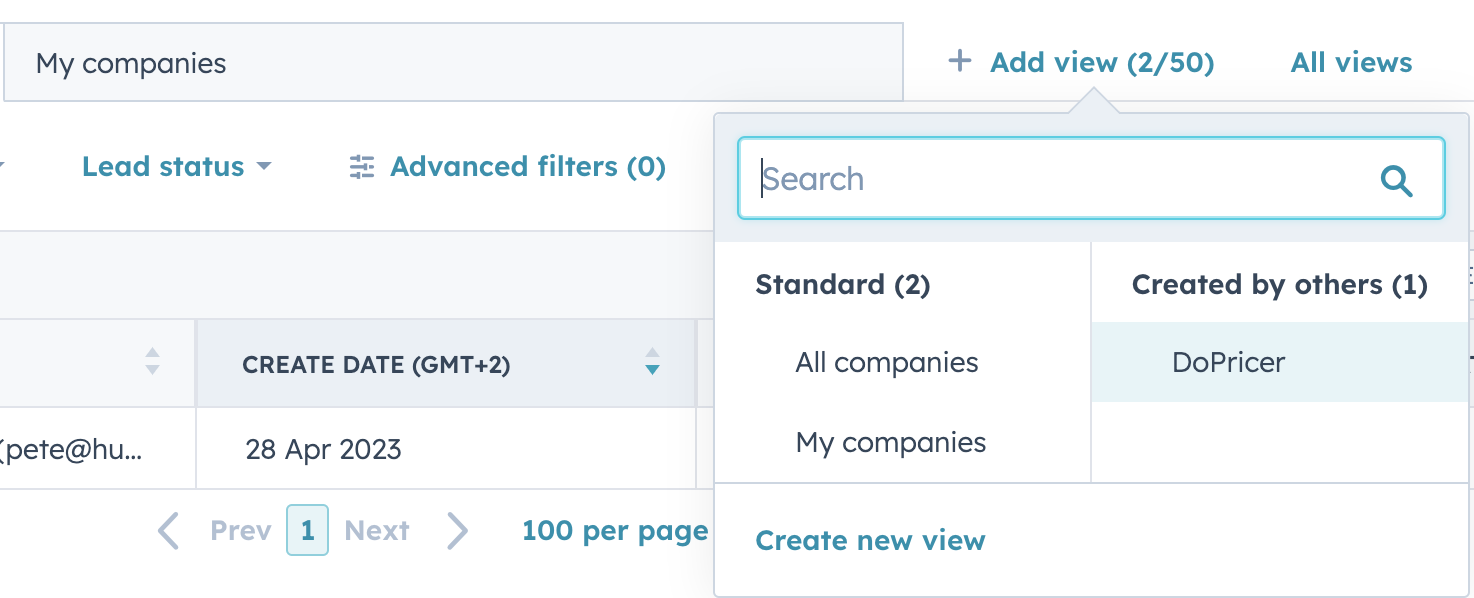
To the right of My companies > Click +Add view > Create new view
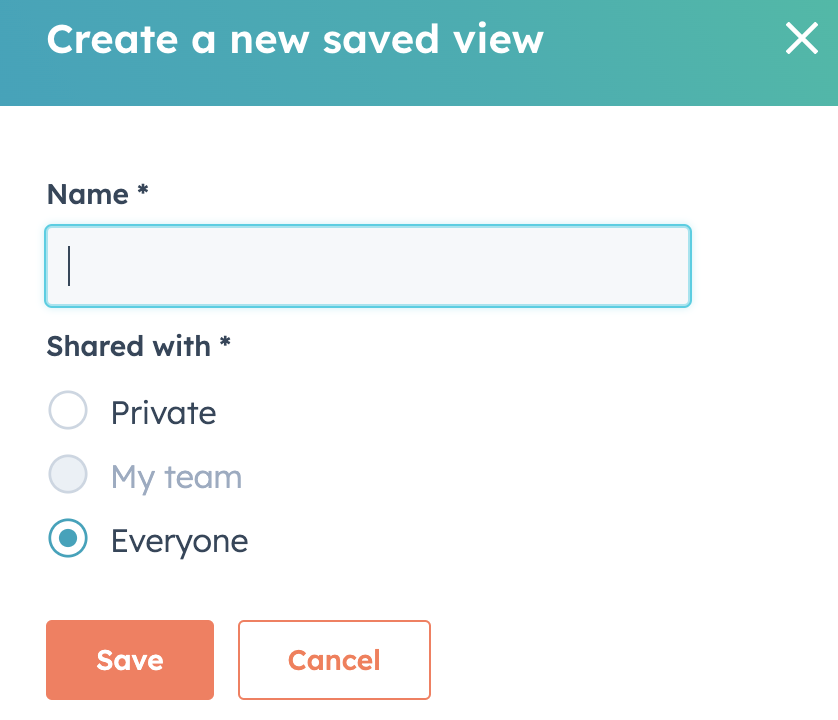
Name of the View and choose who it will be viewable to: My team, Everyone or Private > Save
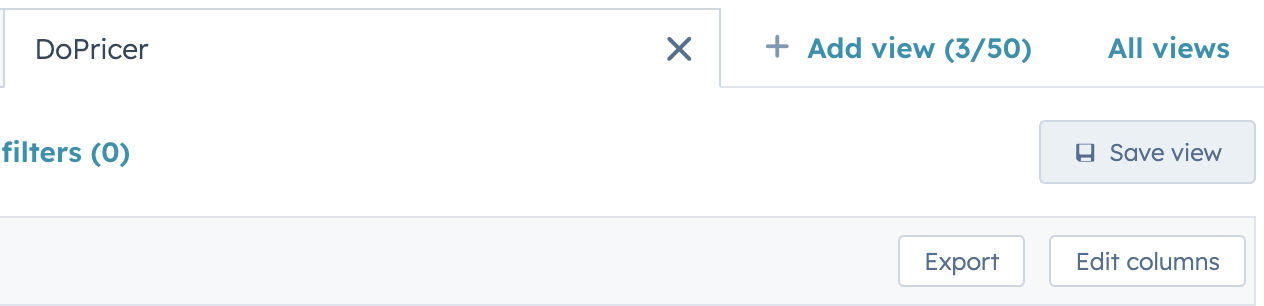
Click Edit columns
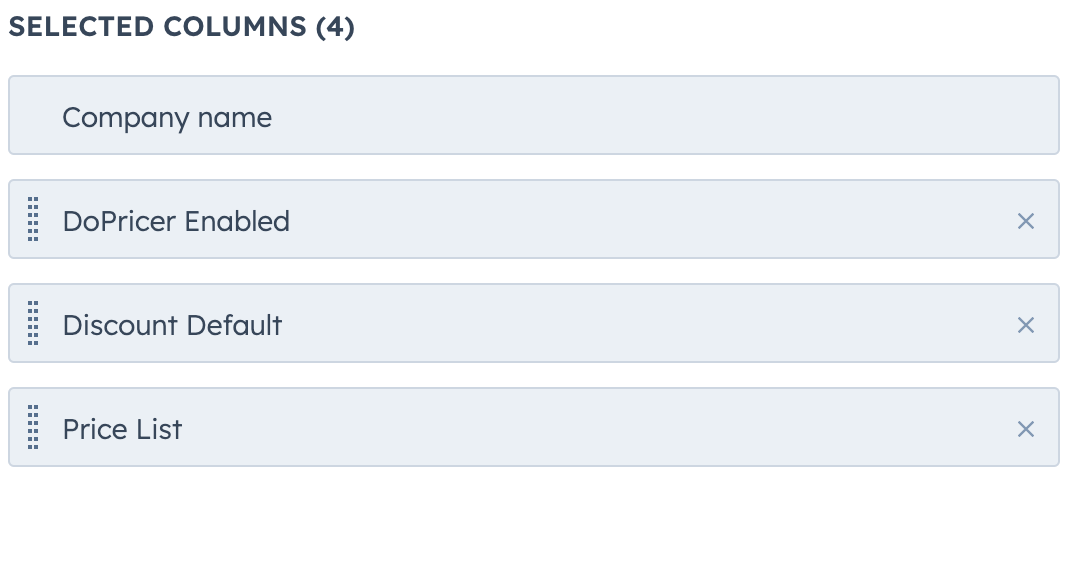
Remove all right-hand column items, except Company name:
Scroll to the bottom left-hand column to find the DoPricer list:
> Select DoPricer Enabled, Discount Default, Discount by Product Items and DoPricer Pricelist (plus Price by Product Items or category Disc% properties if you use them) in the left-hand column to add them to the view on the right column:
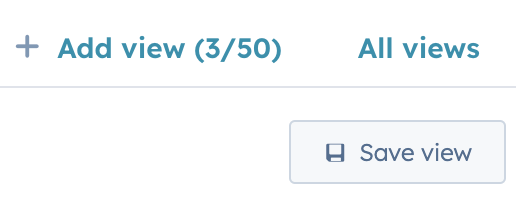
Once you're happy with your selection, click Save view in the top-right of the view panel:
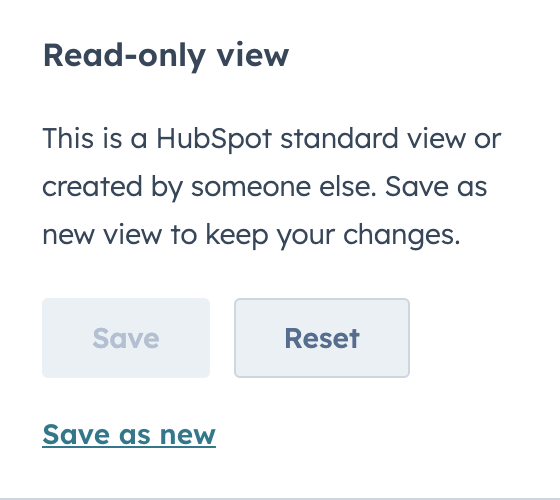
Click Save as new
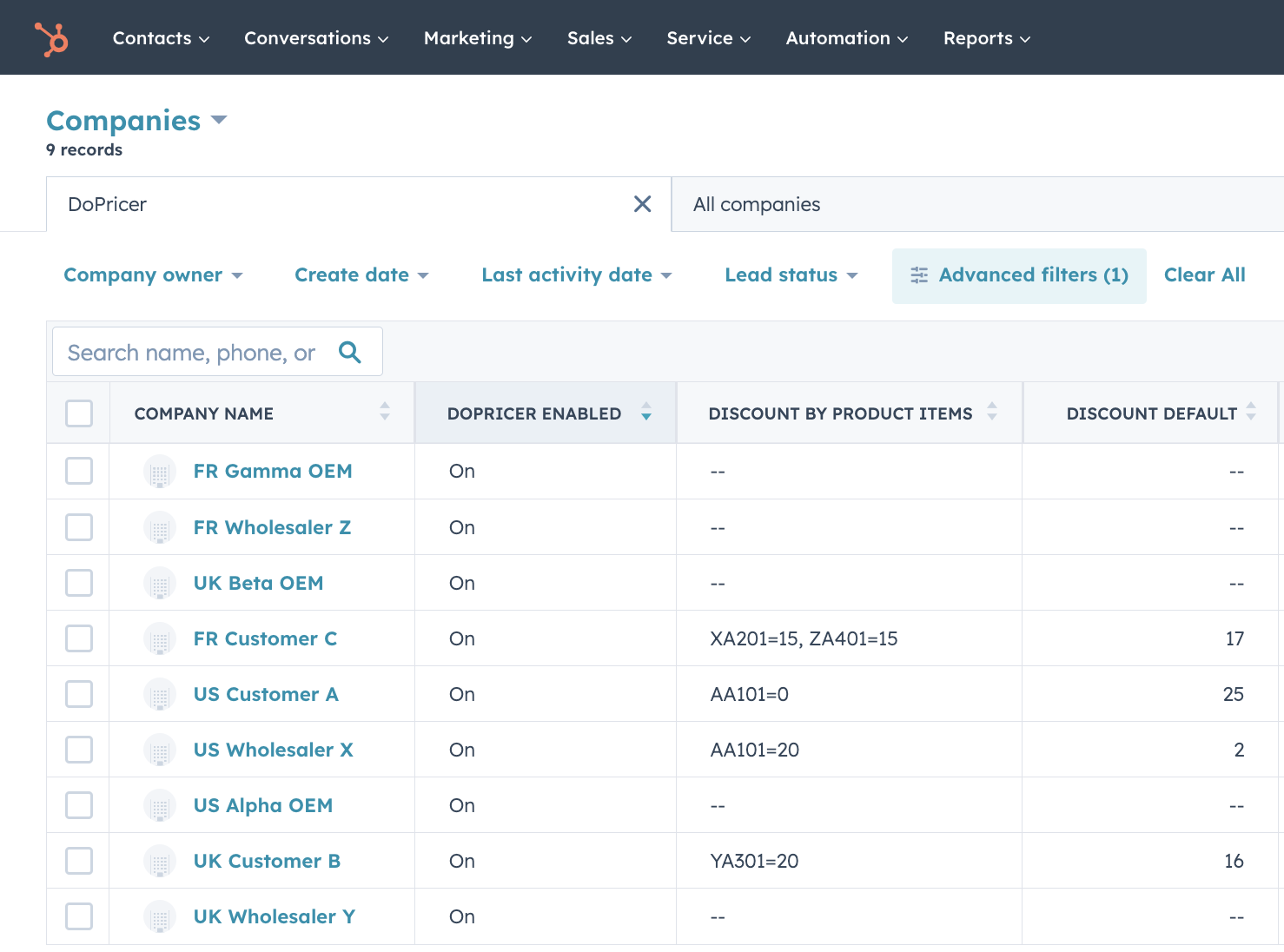
Now you can view all your Companies using DoPricer Enabled (On or -- Off), e.g. the Discount by Product Items, and Discount Default for each company:
You may want to view How to set a default discount per company.
Related articles
- How do I set a default discount per company?
- How do I set up pricing rules for different customers?
- How do I set discounts at product, category, and company level?
- Where can I find a list of all my company's pricing rules?
- Can DoPricer handle custom and multiple price lists?
- How does DoPricer pricing work?
For more help please email support@hubdo.com