
INDEX
-
Part A: Install and configure
-
Part B: Create your first quote
What's next: DoQuotes Modules for Revenue Hub
Appendix: How to uninstall DoQuotes
About DoQuotes
DoQuotes has two halves, each with its own guide:
- The DoQuotes App — the card that appears on a deal record. It creates, clones, publishes, recalls and numbers quotes, and can create one quote per reseller or partner on the same deal (Multi-Quote). It also handles the secure data connection that DoQuotes Modules (below) rely on to save a buyer's answers back to HubSpot. This half works on any HubSpot portal that has quotes — no particular hub or tier is required, whether your portal uses legacy quotes, Revenue Hub quotes, or both (sometimes called a "hybrid" portal). It's installed once per portal from the HubSpot App Marketplace. This guide covers the DoQuotes App.
- DoQuotes Modules — buyer-facing fields and layouts you add to a Revenue Hub quote template: form fields (text, number, date, dropdown, radio, checkbox) that save a buyer's answer straight back to a HubSpot property, a flexible column layout, and conditional visibility rules that let a quote adapt to what a buyer has already answered.
Note: Creating and publishing quotes on a Revenue Hub portal requires a Revenue Hub Seat or Partner Access assigned to your HubSpot user — check with your HubSpot admin if you're not sure whether you have one.
Note: If your portal has Revenue Hub, you can also add DoQuotes Modules to a quote template — the fields a buyer fills in directly on the published quote. Complete this guide first, then follow the steps in its own guide: Set-Up Guide: How to install DoQuotes Modules for Revenue Hub Quotes.
Not sure which parts of DoQuotes your HubSpot subscription supports? See Which HubSpot subscription do I need for DoQuotes?
Part A: Install and configure
1. Install DoQuotes from the HubSpot Marketplace
Note: You'll need to be a Super Admin in the HubSpot portal to install an app.
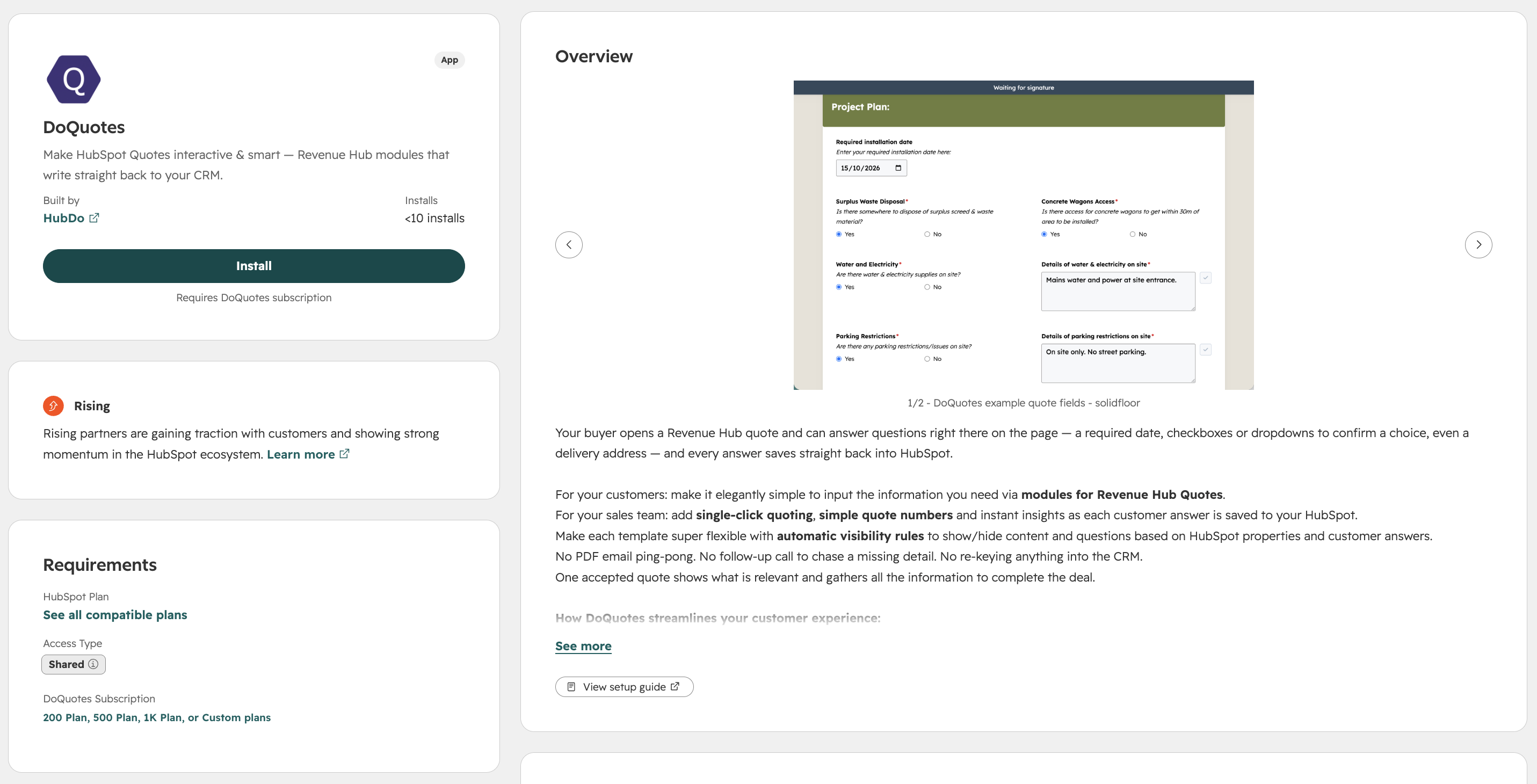
- Open the DoQuotes listing on the HubSpot App Marketplace and click Install.
- Choose which HubSpot portal to install into, and approve the requested permissions when prompted.
2. Configure DoQuotes' settings
As soon as your install finishes, HubSpot takes you straight to DoQuotes' settings screen — there's nothing to navigate to the first time.
Tip: To find this screen again later, go to Settings → Integrations → Connected Apps, and open DoQuotes.
-
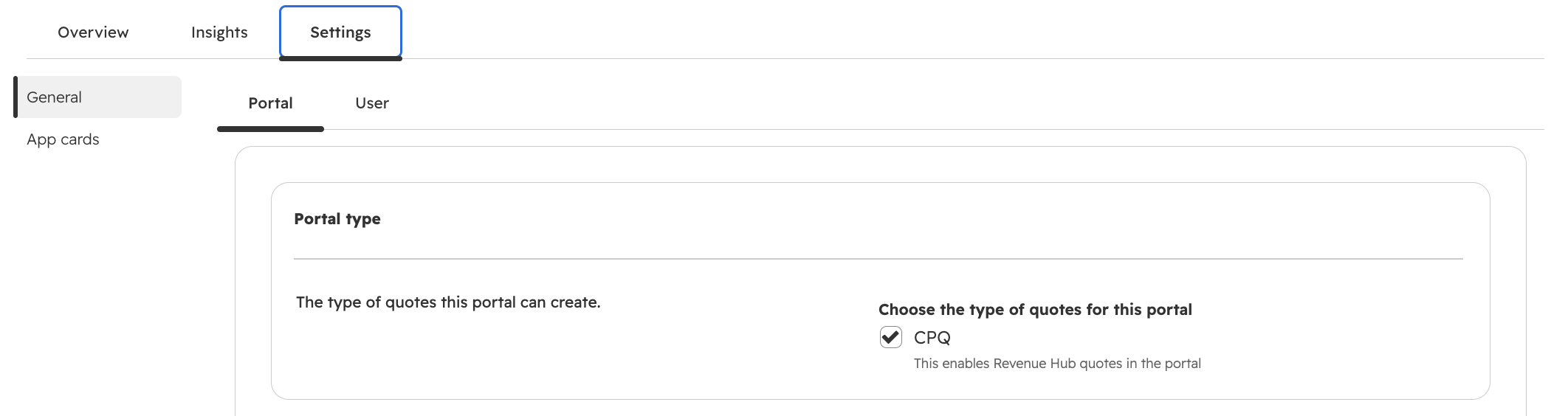
Portal Type. A checkbox (or checkboxes) shows whether this portal has Legacy quotes, Revenue Hub (CPQ) quotes, or both.
-
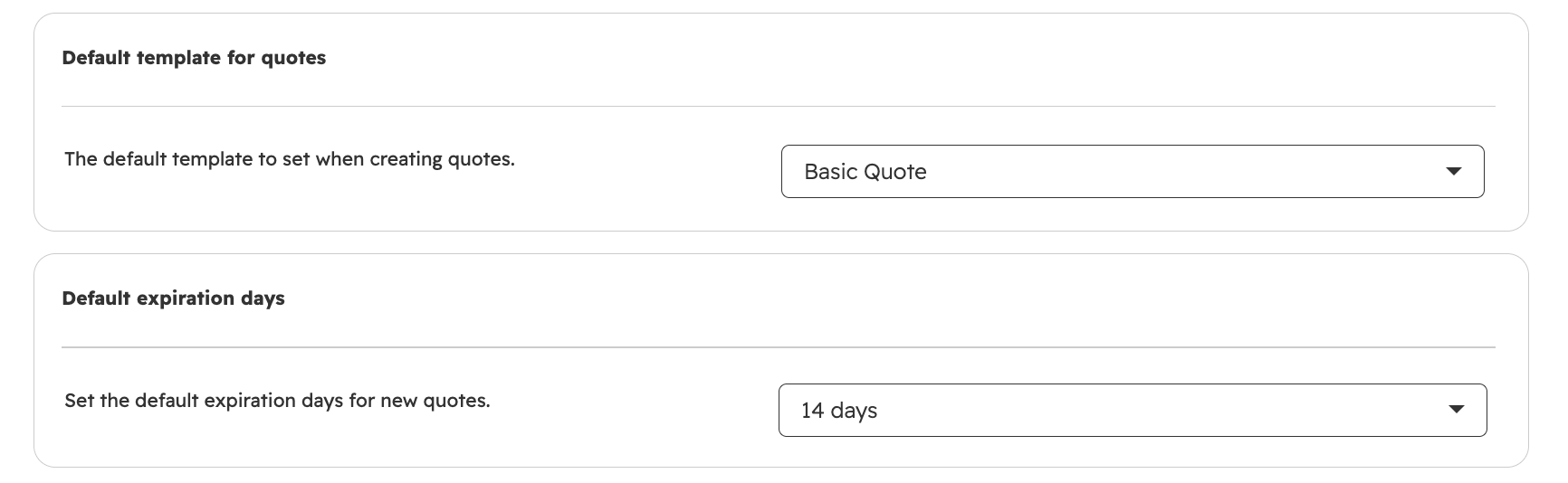
Default template. Choose the quote template new quotes will use by default. Legacy portals generally already have a basic template available to pick; if none appear in the dropdown, it's because no quote template has been published yet in this portal. To create and publish one: go to Settings → Objects → Quotes → Quote Templates → Open template library, then either Create new template, or preview one of the pre-built templates, customize it, name it, and publish it.
-
Default expiration days. Set to 14 days on install — change it if you'd like new quotes to expire sooner or later by default.
-
Quote reference number settings — Quote prefix (for example
Q), Decimal Places (for example0000), and Next Quote Number. The live preview shows the exact quote number this will produce, for exampleQ00123.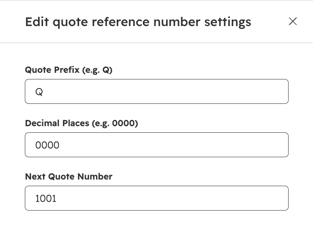
-
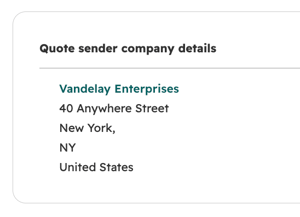
Quote sender company details. This setting may be Legacy-quotes-only — Revenue Hub quotes instead use your portal's own Settings → Account Defaults → Company Information, though you can override that per template in the template's own Parties module.
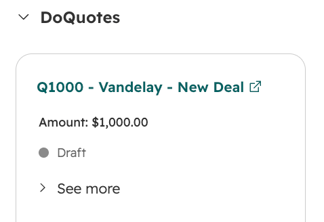
Feature note: HubSpot doesn't add any reference number to a quote's title on its own — its own internal quote number is a 12-digit date-and-random string (for example 20260902-101122556), not something shown in the title. DoQuotes instead creates its own simpler short reference (like Q00123) and prepends it to the quote's title — so your team can spot it at a glance, and find it by search, since quote titles are searchable. The number is also stored in its own quote property, created automatically when DoQuotes is installed, so — like any other quote property — you can add it to a quote template if you'd like it to appear on the quote itself.
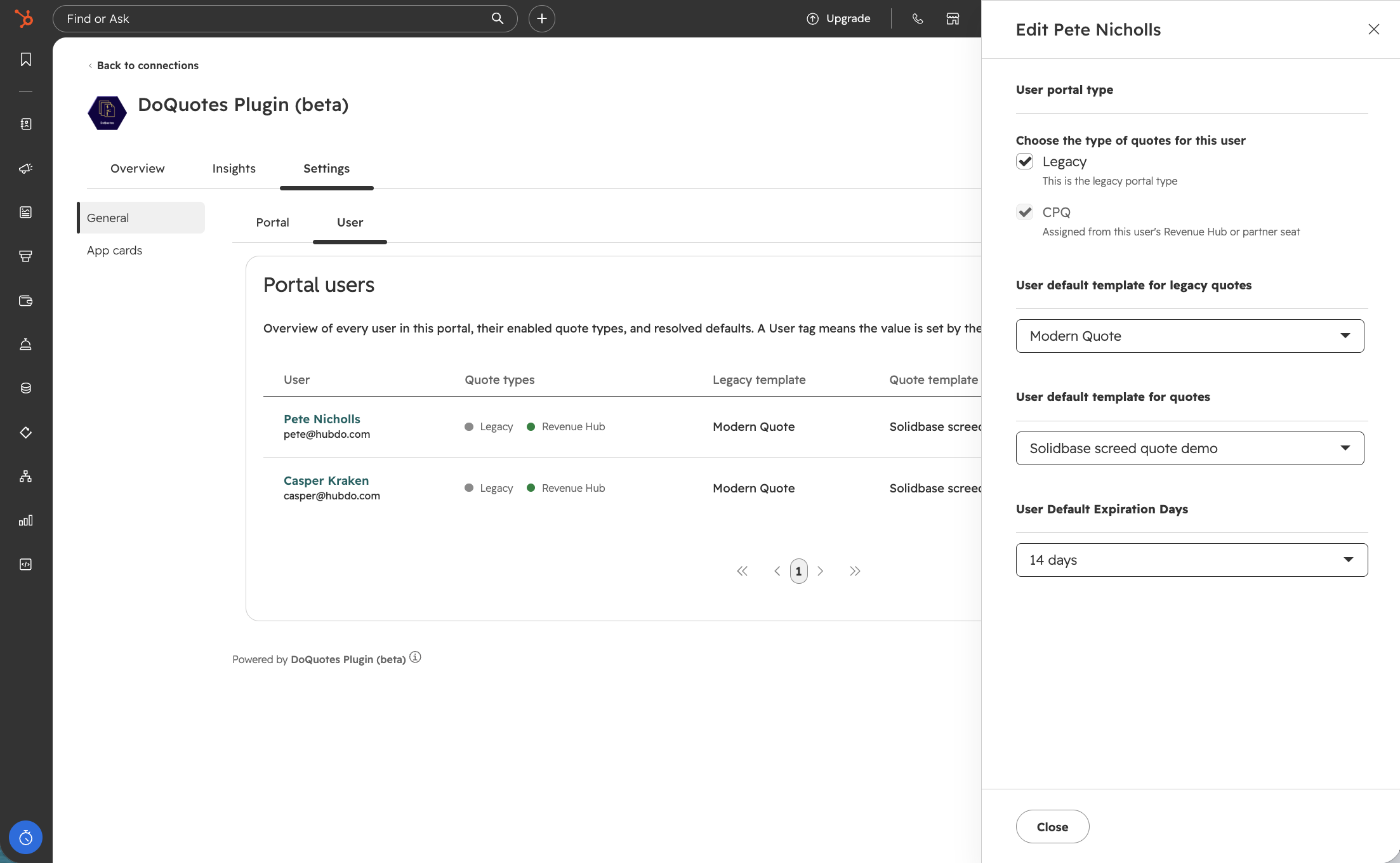
Tip: Your own default template and default expiration days can also be set independently on the User tab of this same settings screen, without affecting the portal-wide defaults above.
Tip: If you plan to stop using DoQuotes later, note that uninstalling the app is not the same as cancelling your subscription. See the DoQuotes End User Licence Agreement for what cancelling does, and Appendix: How to uninstall DoQuotes below for what happens to your portal's data if you uninstall the app itself.
3. Make the DoQuotes card visible on your deals
Installing DoQuotes doesn't automatically add its card to your deal records — an admin needs to turn it on first. You're already on the right screen, from step 2 above.
Tip: To get back to this screen later, go to Settings → Integrations → Connected Apps, and open DoQuotes.
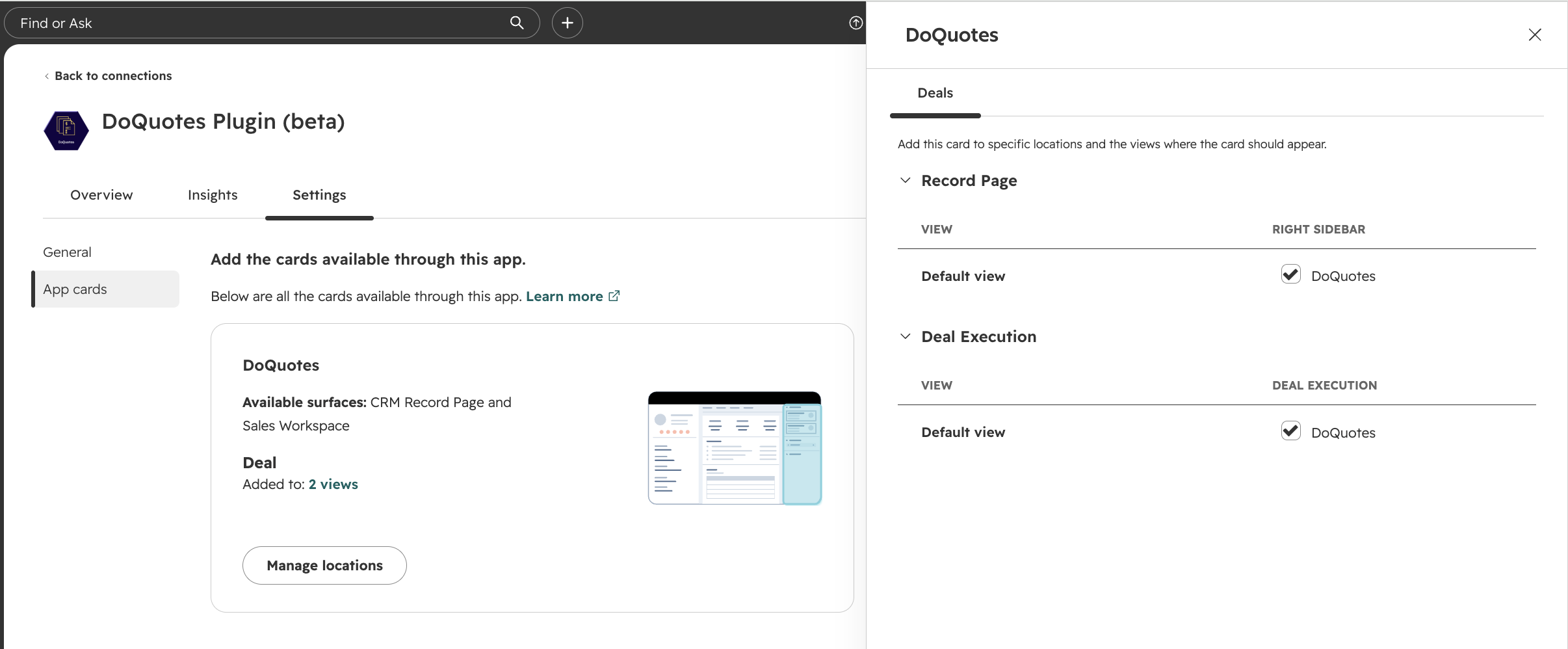
- Click the App cards tab.
- Under the DoQuotes card entry, click Manage locations (or the linked view count, e.g. "Added to: 2 views").
- In the panel that opens, under the Deals tab, tick DoQuotes for each view you want the card to appear in — under Record Page (the right sidebar of a deal record) and, if your team uses it, Deal Execution (Sales Workspace).
- If your portal has more than one deal view (for example, separate customized views per pipeline), each one is listed as its own row here — tick DoQuotes for every view your team should see it in.
- Click Save.
Once saved, the DoQuotes card appears in the locations you ticked, for everyone on your team.
Part B: Create your first quote
4. Create your first quote
- Open any deal that has at least one line item and one associated contact.
-
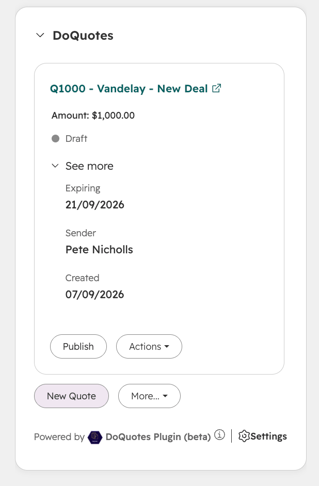
In the deal's right-hand sidebar, find the DoQuotes card.
-
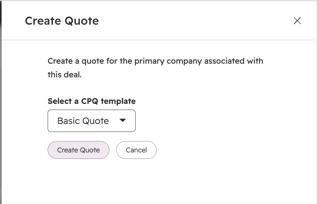
Click New quote for a one-click instant quote using your default template, or Create Quote to open a panel where you can choose a different template instead. Either way, DoQuotes creates the quote with the sender, the deal's line items and the buyer contacts already filled in.
-
Click the quote's title on the DoQuotes card to open it in the quote editor, and make any changes you need.
- Publish the quote — either from within the quote editor, or by clicking Publish on the DoQuotes card — to make it ready to share with the buyer via its quote link.
- From the same card you can also Clone a quote or Recall a published quote back to draft.
For the full walkthrough, including Multi-Quote for resellers and partners, see Create a quote.
What's next: DoQuotes Modules for Revenue Hub
If your portal has Revenue Hub Professional or Enterprise and a Revenue Hub Seat, you can add DoQuotes Modules to a quote template so buyers can answer questions directly on the published quote — a delivery date, a service tier, a special request — with every answer writing straight back to HubSpot. Continue in Set-Up Guide: How to install DoQuotes Modules for Revenue Hub Quotes.
Any problems at all, contact support@hubdo.com.
Appendix: How to uninstall DoQuotes
Note: Uninstalling the app is a different action from cancelling your subscription — see the DoQuotes End User Licence Agreement for what cancelling does. This section covers what happens to your portal and your quote data specifically when you uninstall the DoQuotes app itself.
- Go to Settings → Integrations → Connected Apps, find DoQuotes in the list, then click Actions → Uninstall. This removes the DoQuotes card from your deals — it no longer appears for anyone on your team.
- No data is removed from your HubSpot portal. Every quote DoQuotes ever created, cloned or published remains fully intact as an ordinary HubSpot Quote — nothing about the quote itself is deleted or changed, only the app's own card and its ability to act on quotes going forward.
- The custom properties DoQuotes created when it was installed (listed below) stay in your portal after you uninstall. If you don't need them, they can be deleted to fully restore your portal to its pre-install state.
- If you reinstall DoQuotes later, it reuses these same properties if they still exist, or recreates them fresh if you'd deleted them. If you only archived the properties rather than deleting them outright, you'll need to either unarchive them or delete them completely before reinstalling — DoQuotes' install process needs to fully configure them, which it can't do while they're archived.
Properties DoQuotes creates on install
Restoring your portal completely to its state before DoQuotes was installed means deleting these properties, along with any data they hold.
Caution: hd_doquotes_datablob is a hidden property — DoQuotes hides it deliberately so it can't be accidentally edited or corrupted from the HubSpot UI. It can still be viewed or deleted via the HubSpot API.
hd_quote_number— DoQuotes Short Ref (Quote property) [DoQuotes' own calculated short quote reference number (e.g.Q00123)]hd_source_quote_number— DoQuotes Cloned Short Ref (Quote property) [The source quote's short reference number, recorded when a quote is cloned]hd_source_quote_id— HubSpot source quote object id (Quote property) [The source quote's HubSpot object ID, recorded when a quote is cloned]hd_source_quote_pub_url— HubSpot source quote published url (Quote property) [The source quote's published URL, recorded when a quote is cloned]hd_doquotes_datablob— DoQuotes datablob (Quote property, hidden) [Values saved by DoQuotes Modules configured to save data to the quote page itself, rather than to the deal or a company — see Set-Up Guide: How to install DoQuotes Modules]hd_default_comments— DoQuotes default comments (Deal property) [Default comments text, copied onto new quotes created from this deal]hd_default_terms— DoQuotes default terms (Deal property) [Default terms text, copied onto new quotes created from this deal]