
DoPricer isn't doing anything — no prices or discounts are being applied
Check the Master Switch first.
Go to your DoPricer settings screen. If the Master Switch is off, DoPricer is discarding all incoming webhooks and nothing will be processed.
The Master Switch can be off for three reasons:
- You switched it off manually. Turn it back on to resume normal processing.
- The free trial limit was reached. During the free trial, DoPricer processes up to 500 line items. Once that limit is reached, the Master Switch turns off automatically and your settings screen displays a message. To resume, either sign up to a paid plan or contact HubDo Support to request a trial extension.
- Your subscription is overdue and locked. If a subscription goes overdue and the grace period expires, the Master Switch is automatically turned off and locked — you cannot re-enable it yourself. Bring your subscription up to date or contact HubDo Support to unlock it.
Prices look wrong — DoPricer hasn't updated them
Check whether you've refreshed your browser.
DoPricer updates HubSpot data in the background. The HubSpot UI does not automatically reflect those changes — you must press browser refresh to see DoPricer's applied prices and discounts.
After saving line items on a Deal, wait 7–8 seconds, then refresh. If prices are still incorrect after refreshing, continue with the checks below.
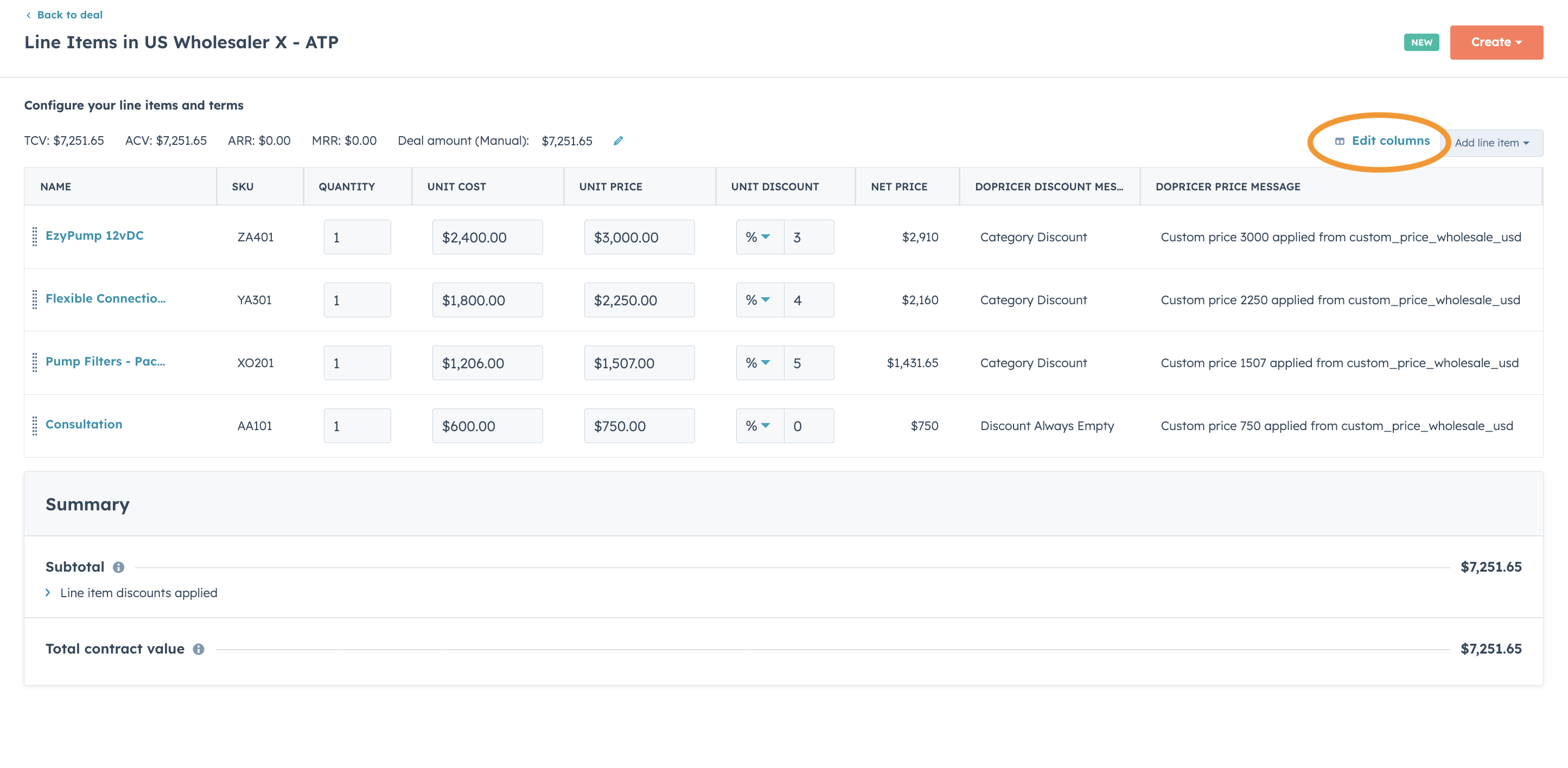
Check the DoPricer Price Message property on the line item.
This property records exactly what DoPricer did. Add it as a column in your Deal view, or open the line item record directly. The value will tell you which price was applied and why — for example:
Custom price 2257 applied from custom_price_wholesale_usd— a custom price list was usedStandard price 2700 applied based on deal currency EUR— the Deal or Quote currency didn't match the price list currency, so DoPricer fell back to the standard HubSpot price for that currency
If the property is empty, DoPricer either has not yet processed the line item, or the line item was created before DoPricer was installed.
Related How to add DoPrice Price Message article
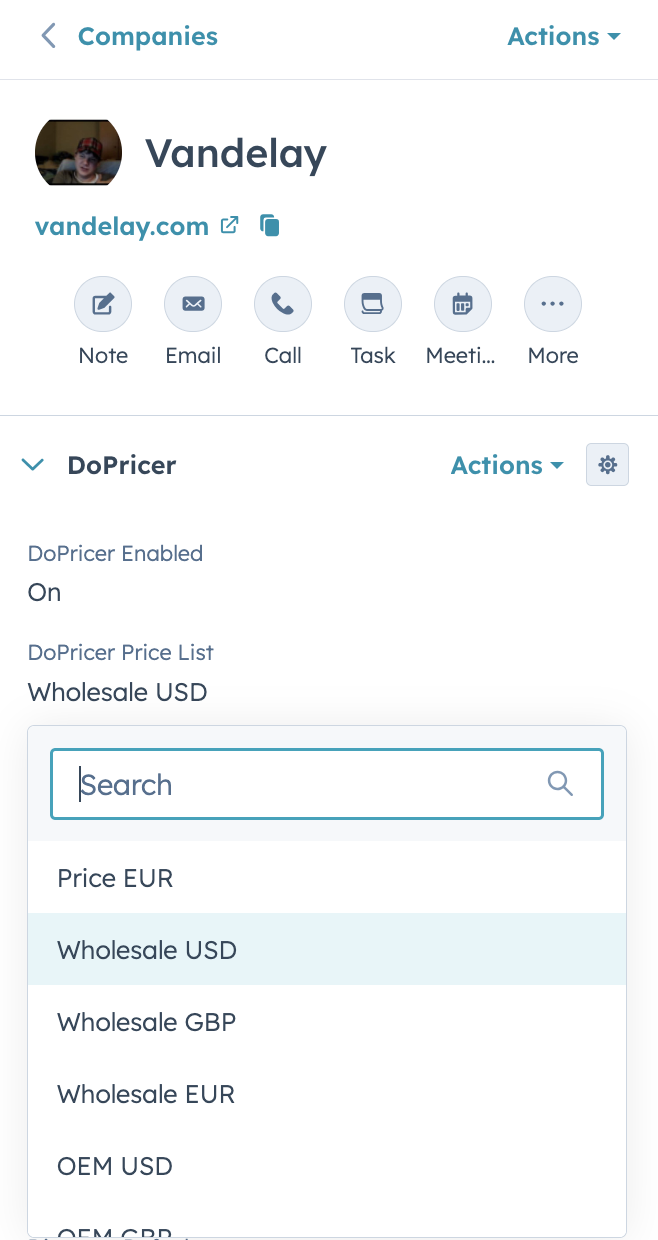
Check the company's price list setting.
On the Company record, find the DoPricer Price list property. Confirm that the correct price list is selected. Each Company can have only one active price list at a time.
Check the currency.
If the Deal or Quote currency does not match the price list currency, DoPricer falls back to the standard HubSpot price for that currency. This is by design. If you need custom pricing in a different currency, a separate price list property for that currency is required — contact HubDo Support.
Discounts look wrong — the wrong discount is being applied (or none at all)
Check the DoPricer Discount Message property on the line item.
This property records exactly which discount rule was applied. Add it as a column in your Deal view, or open the line item record directly. Exact values and their meanings:
Value [Meaning]
Line Item Discount[A per-product SKU discount was applied]Category Discount[A product category discount was applied]Default Discount[The Company default discount was applied]No Discount[No discount rule matched; none was applied]Discount Always Empty[The product is marked as never discountable]Company Off[DoPricer is disabled for this Company]
Check the discount properties on the Company record.
DoPricer applies discounts in strict priority order, stopping at the first match:
- Per-product (SKU-based) — Discount By Product Items property on the Company. Format:
SKU=discount%e.g.ABC123=10,ABC124=20. Check the SKU in this list matches the product SKU exactly. - Per-category — the product must have a Product Category set in the product library, and the Company must have a matching category discount property populated (e.g. Pumps Disc%).
- Default discount — Discount Default property on the Company. Applied when no SKU or category match is found.
If all three are empty, no discount is applied — this is expected behaviour, not an error.
Check whether the product is marked as non-discountable.
In the product library, open the product record and check the DoPricer Discount Always Empty property. If it is set to Yes, no discount will ever be applied to line items for that product, regardless of any Company-level settings. This is typically used for delivery charges and service fees.
A line item was processed but prices were then overwritten
This is the Quote Builder auto-save issue.
HubSpot's Quote Builder auto-saves every few seconds and does not re-fetch data after DoPricer updates it in the background. If a sales rep continues working in Quote Builder after products are added, it can write stale prices back to HubSpot, overwriting DoPricer's correct values.
The fix is straightforward: press browser refresh immediately after adding line items in Quote Builder. This exits Quote Builder and returns you to the Deal. When you reopen the quote, DoPricer's correct prices will be displayed.
The recommended best practice is to always add line items to the Deal first, not inside Quote Builder:
- Add line items to the Deal and click Save
- Wait 7–8 seconds, then press browser refresh
- Confirm DoPricer's prices look correct on the Deal
- Click Create Quote — the line items carry over with DoPricer's prices already applied
Price Lock is on by default for Quotes, which provides an additional safeguard — if a price is overwritten, DoPricer will restore it. However, best practice is to follow the workflow above and avoid the overwrite in the first place.
A line item is being skipped — DoPricer isn't processing it at all
Check whether the DoPricer Discount Message property is already populated on the line item.
Once this property contains any value, DoPricer treats that line item as already processed and will not re-evaluate it. This prevents duplicate processing. If a line item was processed previously and then edited, DoPricer will not re-run on it.
Check whether the product record itself has a value in the DoPricer Discount Message property.
If the DoPricer Discount Message property is populated on the product record in the product library (not just on the line item), DoPricer will skip all pricing and discount evaluation for any line item created from that product. Clear the value from the product record if this is not intentional.
Still not working?
For more help please email support@hubdo.com